Start with broad collections
When you have many bookmarks, begin with a few broad Caves for the parts of your life that matter most, such as work, personal projects, study, or entertainment. Add Chests inside each Cave for the projects and topics within it.
Use tags and search to avoid an overcomplicated structure
Use tags for bookmarks that relate to more than one subject, and search when you remember the topic but not the exact Chest. The free Deckhand plan includes unlimited bookmarks, Caves, and Chests, so your structure can grow with your collection.
Get a clear overview with Chest Map
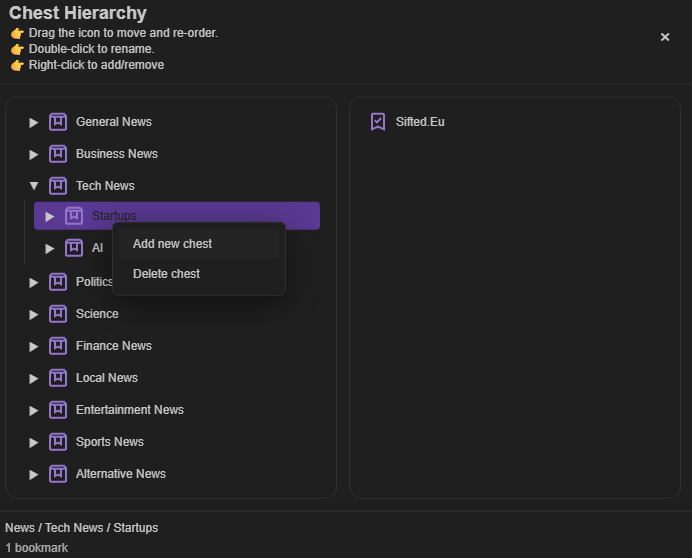
When a Cave contains many Chests and bookmarks, open Chest Map to see the whole structure in one tree view. It gives you a clearer overview of where everything lives, so you can find the right Chest before adding, moving, or reorganizing bookmarks.
Learn what Caves and Chests are.
Save a busy tab session for later
When you already have a large bookmark collection, avoid adding a page just because you need it today. A Tab Snapshot is useful for a long research session or a window with many open tabs that you want to return to as a group.
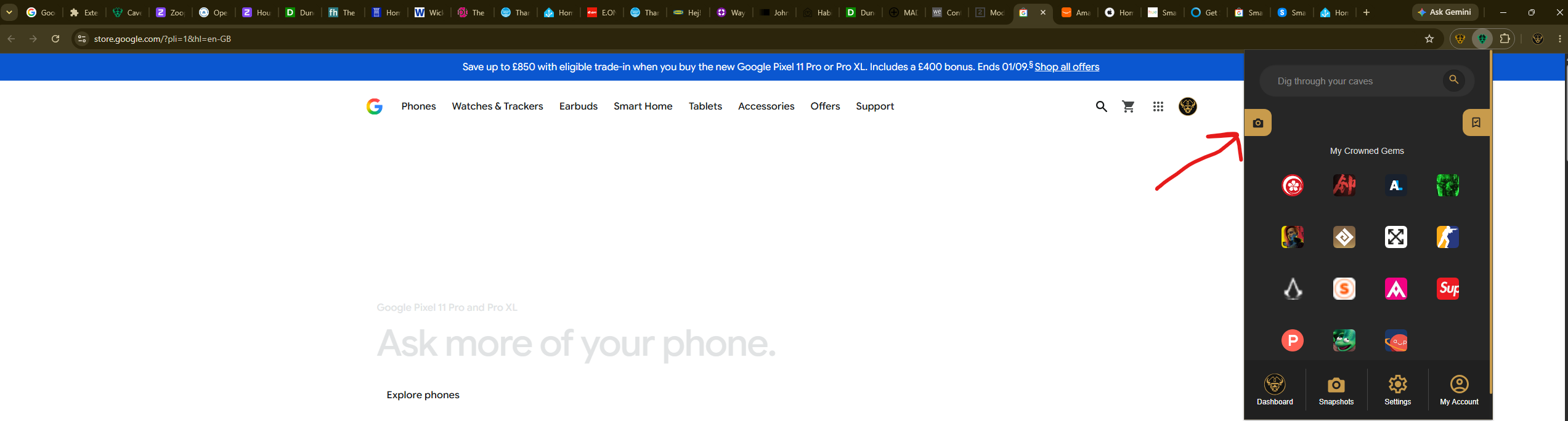
Select the Caves of Wonders (CoW) toolbar button, then choose Save All Open Tabs. Review the tab count in the popup and save the current window as a snapshot.
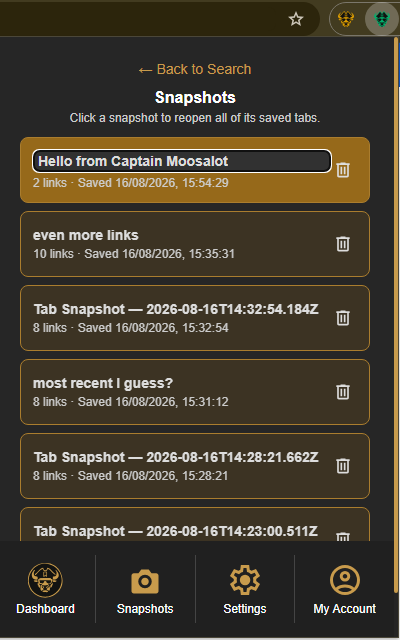
To retrieve the group, open the popup and select Snapshots in the bottom navigation. Select the snapshot card matching the saved session to reopen every link together.