Keep the session without keeping every tab open
When a browser window fills up with tabs for a project, research, shopping, or trip planning, save the group as a Tab Snapshot. The snapshot keeps every saved URL in its existing order, ready to reopen together later.
Save the tabs first
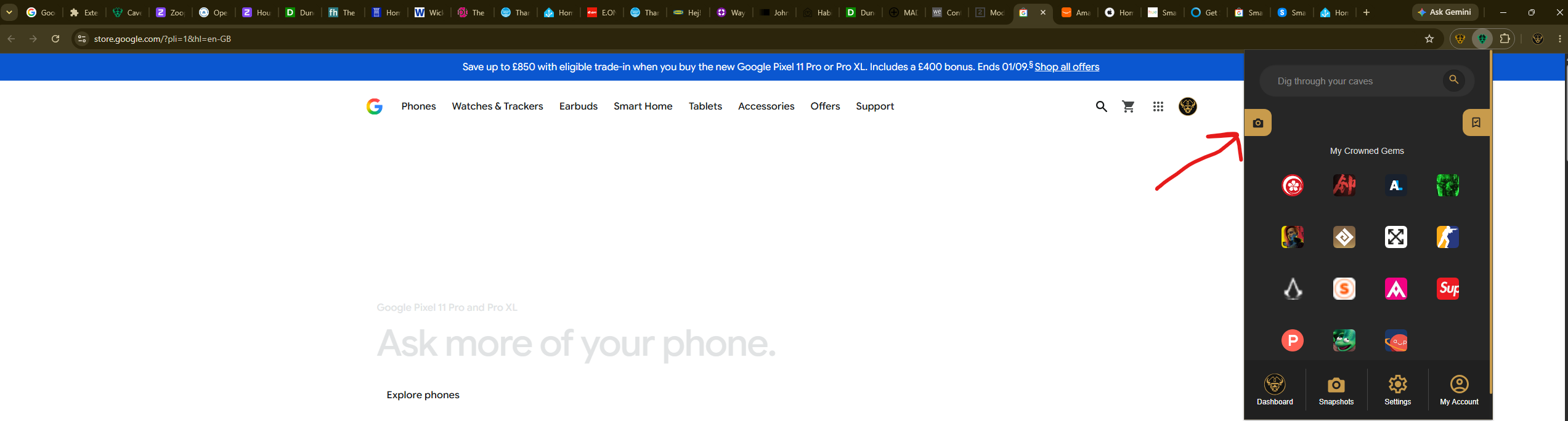
Select the Caves of Wonders (CoW) toolbar button and choose Save All Open Tabs. Check the tab count in the popup, then save the snapshot.
Choose what stays open
Saving a snapshot does not close tabs automatically. After the session is saved, you can close the tabs you no longer need open and return to the complete saved group from Snapshots whenever you need it.
Retrieve the saved session
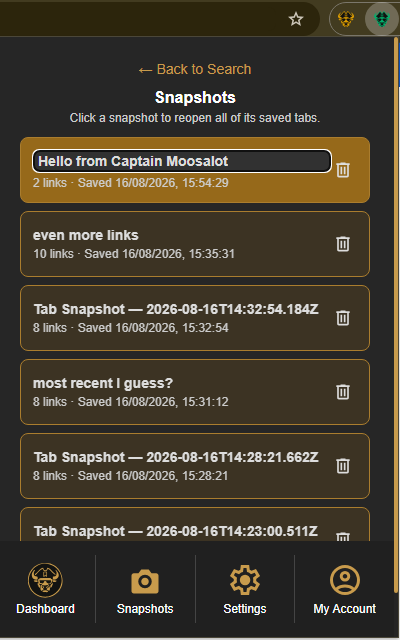
Open the Caves of Wonders (CoW) popup and select Snapshots in the bottom navigation. Find the saved session by its name, number of links, or saved time, then select its card to reopen every saved tab together.