Turn on CoW as your startup page
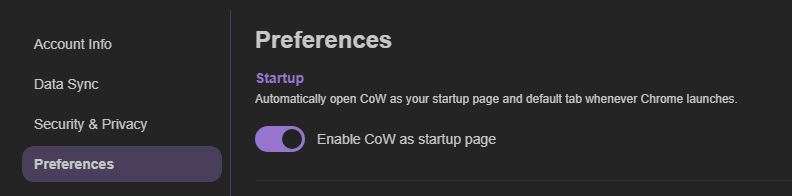
CoW only opens when Chrome starts after you enable it as your startup page. You can choose this during CoW setup, or open Account Settings → Preferences and turn on the startup-page option later.
Choose the Cave you want to start in
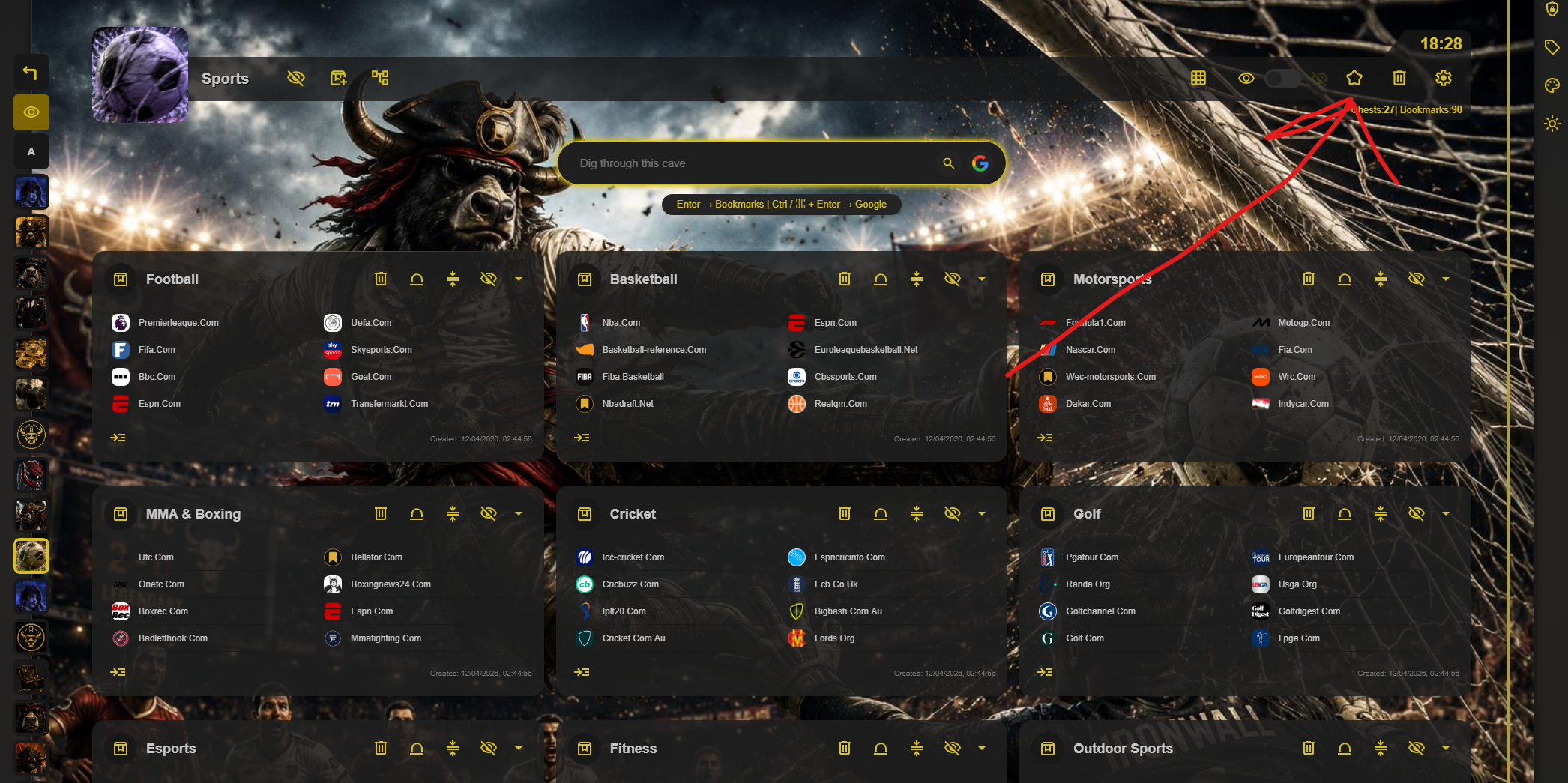
Once the startup-page option is on, set the Cave that should open first by selecting the star in that Cave's toolbar. The default Cave is saved locally, so you can use a work Cave in one browser and a personal Cave on another device while keeping the same Fleet collection.
Keep CoW when Chrome asks
Chrome can ask whether you want to restore its previous New Tab or startup setting after CoW is enabled. Choose Keep if you want CoW to continue opening when Chrome starts. Choosing to revert, installing another New Tab extension, or changing Chrome's startup settings can replace CoW.
Check for browser restrictions
On a work or school computer, browser policies can prevent extensions from controlling startup or New Tab pages. If the setting turns itself off or you cannot change it, ask the browser administrator. Otherwise, enable the startup-page option again in CoW Preferences.
For a shorter setup guide, see how to make CoW open when Chrome starts.