Save the current browser window as a Tab Snapshot
Tab Snapshots save every open tab in your current Chrome window as one reusable session. Each URL is saved in the same order, so you can reopen the whole set later.
Save your open tabs
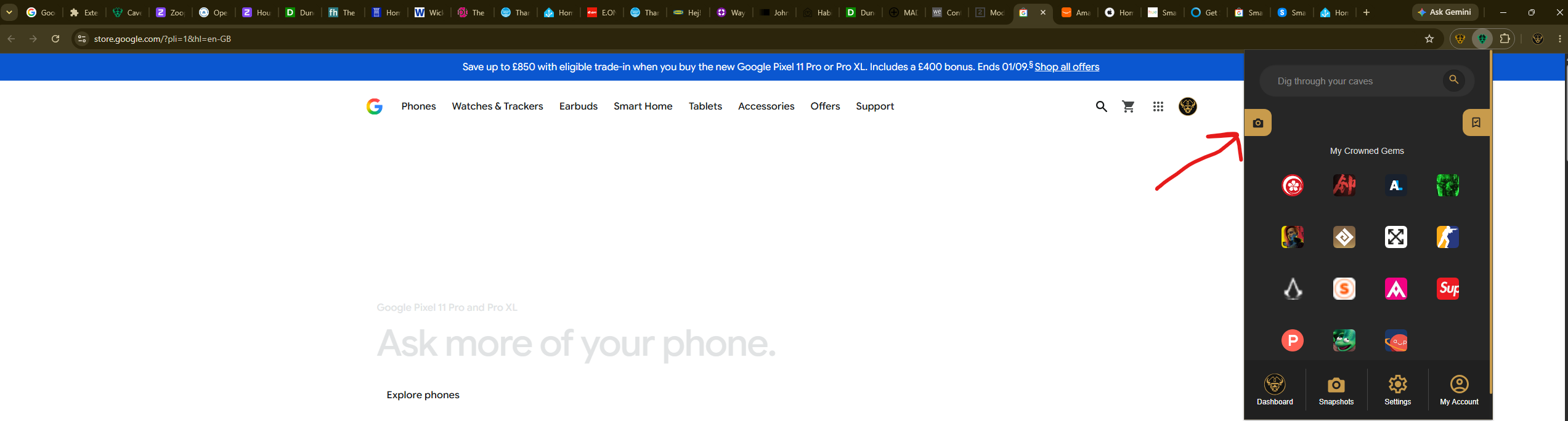
Select the Caves of Wonders (CoW) toolbar button to open the popup. Then select Save All Open Tabs. The popup shows how many tabs will be included and opens the Snapshots view when the session has been saved.
Open the session later
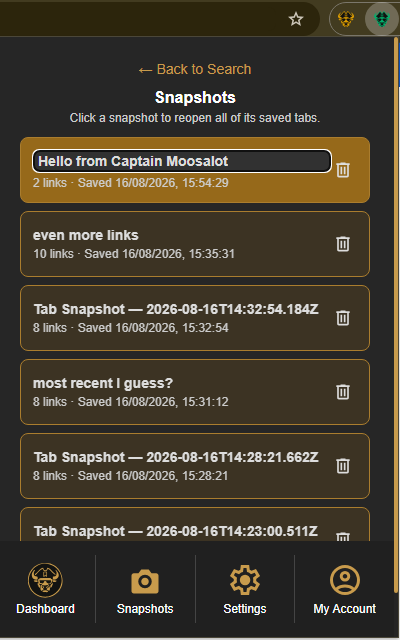
Select the Caves of Wonders (CoW) toolbar button again, then select Snapshots in the bottom navigation. Your saved sessions appear in the Snapshots view.
Find the snapshot by its name, number of links, or saved time, then select its card. Caves of Wonders (CoW) reopens every saved URL together in the order it was saved.