Enable Caves of Wonders (CoW) during setup
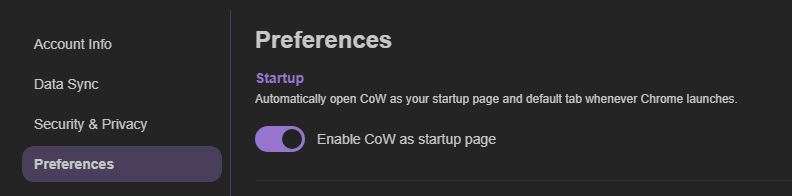
You can enable Caves of Wonders (CoW) as your startup page during setup. You can also open Account Settings, select Preferences, and enable Caves of Wonders (CoW) as your startup page.
This option must be enabled to use the default Cave setting.
Choose the Cave that opens by default
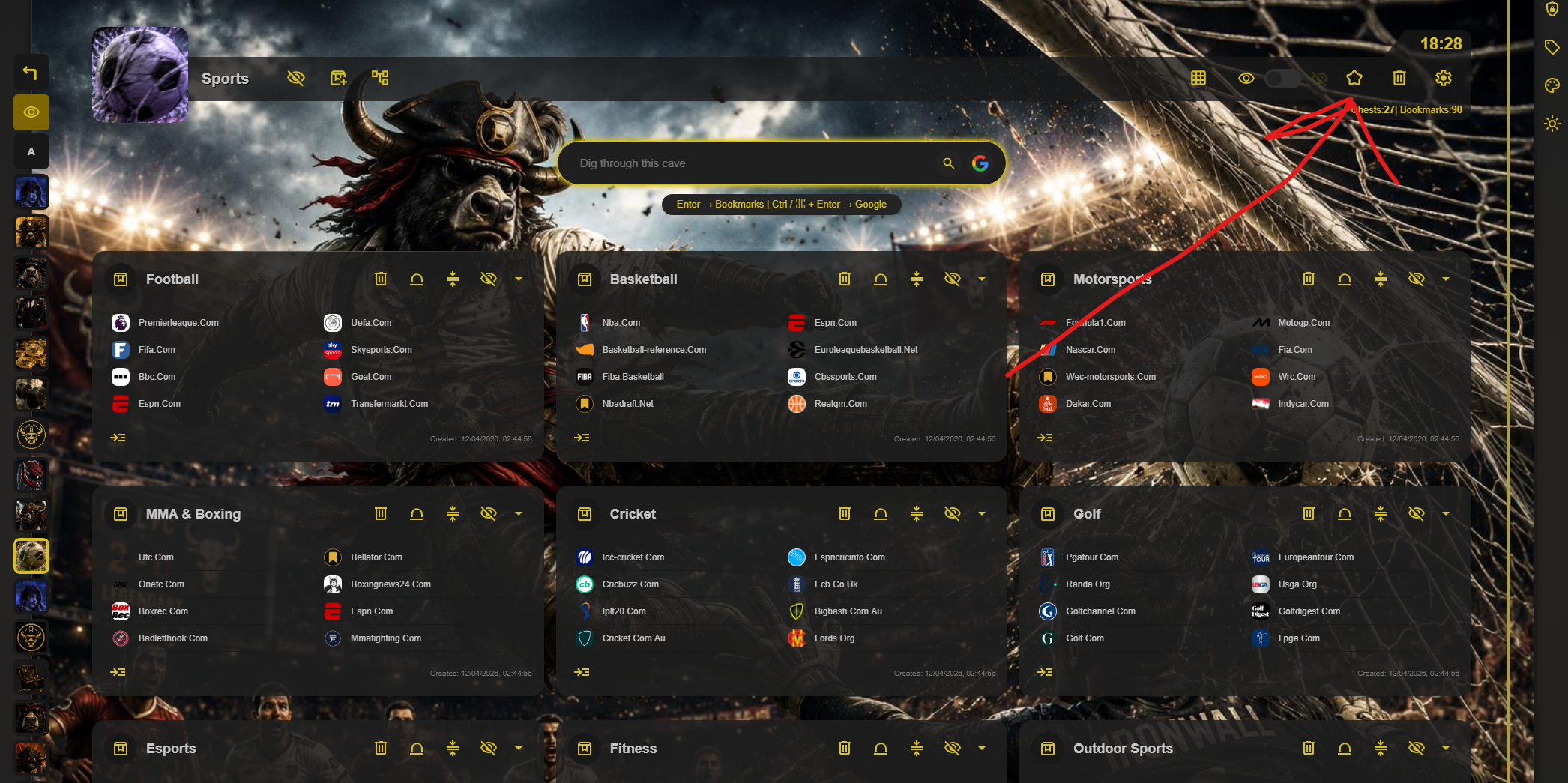
Select the star button in a Cave toolbar to set it as the default Cave shown in a new tab. The setting is local, so you can use different default Caves on different browsers and devices.
Keep the setting in Chrome
Chrome may ask whether you want to revert the setting the first time it opens Caves of Wonders (CoW) as your startup page. Select Keep to stop Chrome from prompting you again.
Learn more about using Caves of Wonders (CoW) as your New Tab page.