Start with the groups that matter to you
Organize bookmarks around the parts of your life that make sense to you, such as work, study, hobbies, or entertainment. In Caves of Wonders (CoW), each of these can have its own Cave, a top-level space for a bookmark collection.
Inside a Cave, use Chests as folders. Add inner Chests when a collection needs more detail, but keep the structure simple enough that you can find a link quickly.
Keep related links together
Use a Chest for a project, topic, or type of site. You can drag and drop bookmarks to change their order or move them into a different Chest. When a bookmark fits more than one topic, add tags instead of making copies.
Search within a Cave when you know what you need but do not remember where you saved it.
Build a system you will keep using
Start with a few Caves and Chests, then adjust them as your collection grows. Caves of Wonders (CoW) includes unlimited Caves, Chests, and bookmarks on every plan, including the free Deckhand plan.
Learn about Caves or see how Chests work.
Save a group of tabs without making more bookmarks
Use bookmarks for sites you intend to keep. If you have several Chrome tabs open for a temporary task, a Tab Snapshot saves the whole window as a reusable session instead of adding each page to your bookmark collection.
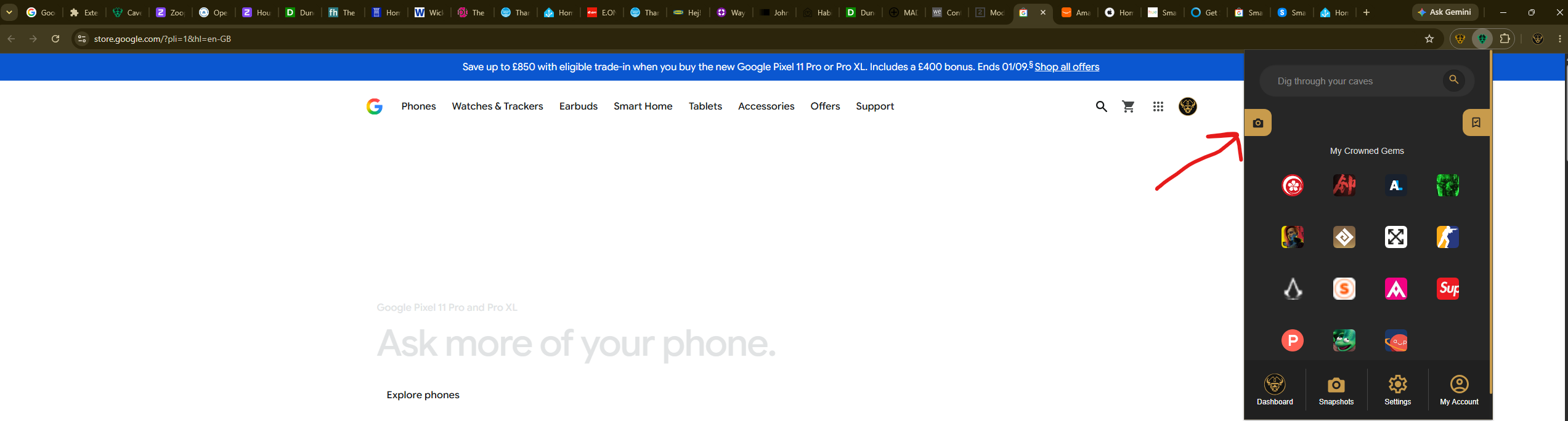
Select the Caves of Wonders (CoW) toolbar button and choose Save All Open Tabs. The popup shows the number of tabs in the current window before you save the snapshot.
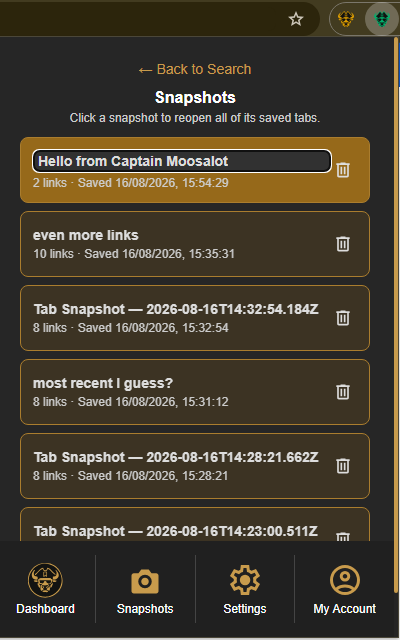
When you want the group again, open the popup, select Snapshots in the bottom navigation, and select the saved session card to reopen every URL in one action.